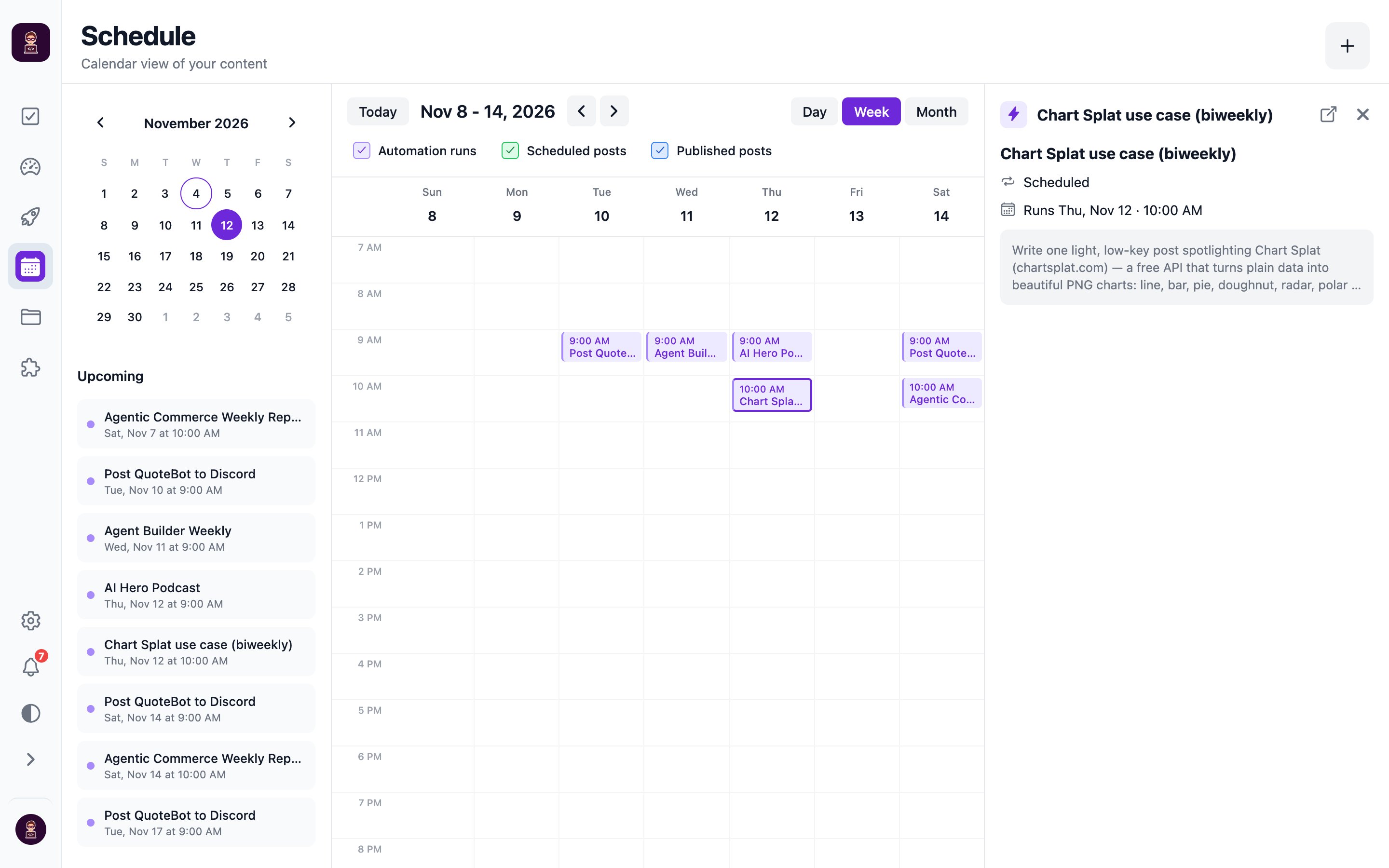
What’s on it
The checkboxes above the calendar filter by event type. Untick one to hide it; the browser remembers your choice. The Upcoming list beside the mini month shows the next two weeks of automation runs, pending posts, and scheduled posts.
Previewing an event
Click an event, in the grid or in the Upcoming list, to open it in a preview panel beside the calendar without leaving the page. The panel shows its status, when it runs or publishes, and its instructions. Open the full task or automation from the panel, or close it to get back to the calendar. A pending post waiting in review can be approved or sent back for a redo right from the panel, or opened on the Review page with the eye icon.Getting around
- Switch between Day, Week, and Month views. The calendar remembers the last one you used.
- Today jumps back to the current date. The arrows, or the left and right arrow keys on the web, move a day, week, or month at a time.
- Click a date in the mini month to jump to it.