> ## Documentation Index
> Fetch the complete documentation index at: https://docs.automate.it.com/llms.txt
> Use this file to discover all available pages before exploring further.
# Reviewing content
> Nothing publishes until a human approves it — this is where that happens
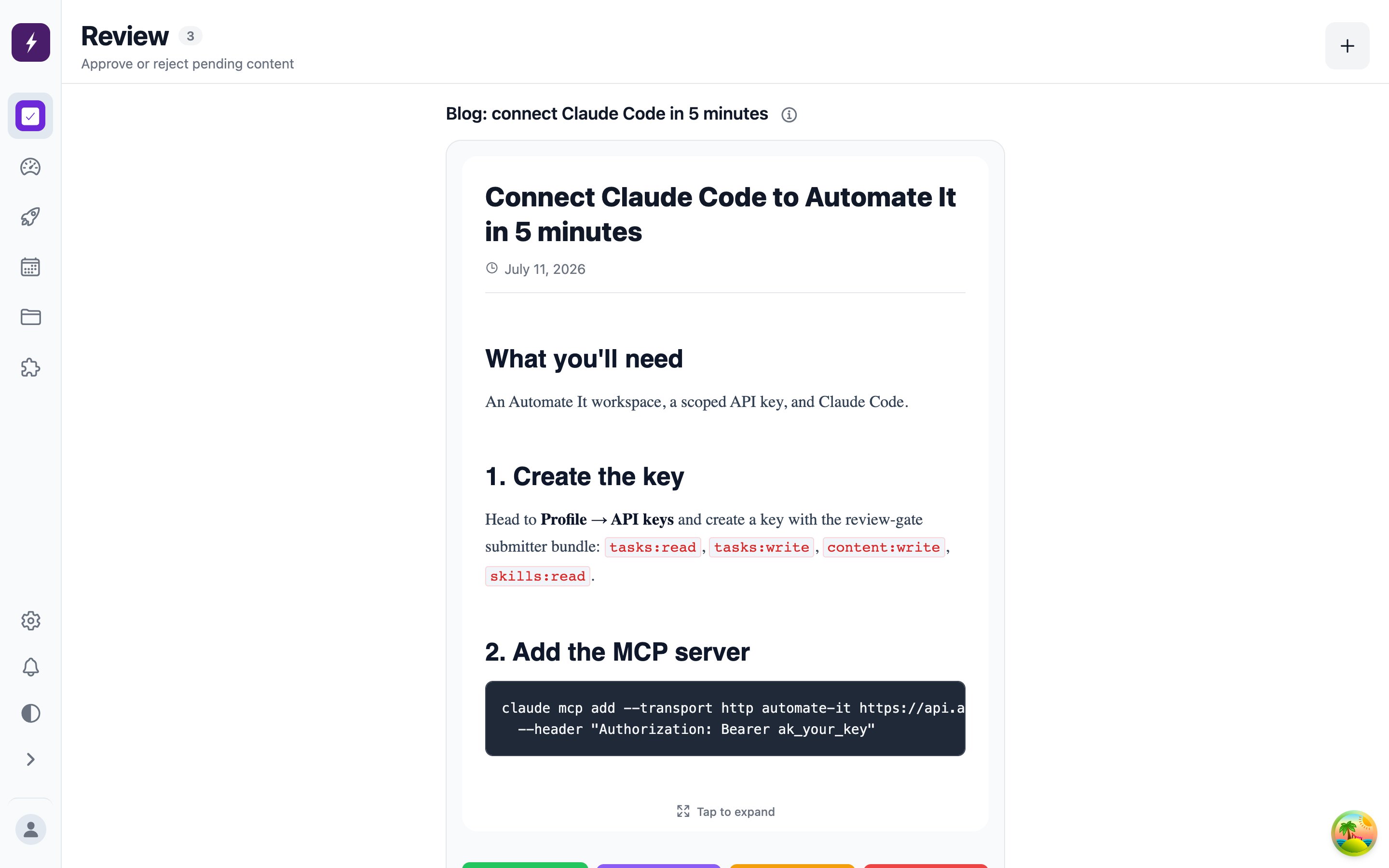
The **Review** tab is the queue of drafts waiting on a human decision. It's built for speed: one task at a time, swipe or click through.
 ## Your three calls
* **Approve** — the content is accepted. What happens next depends on the task's publish mode: *immediate* tasks publish on the spot, *scheduled* tasks publish at their set time, *manual* tasks wait for you to hit **Publish**.
* **Reject with feedback** — the task goes back to `To do` with your note attached as a comment and its revision count bumped. Whoever drafted it revises: the built-in worker automatically takes another pass incorporating your feedback; an external agent or teammate sees your note and revises in place.
* **Edit first** — content items are editable before you approve, so small fixes don't need a full rejection round-trip.
Changed your mind after approving? Rejecting an approved task clears the approval and sends it back the same way.
## Who can review
Approving, rejecting, and publishing require a **Reviewer** or **Admin** role — see [Team & roles](/workspace/team). Viewers can create and work tasks, but their tasks always require review, and they can never approve anything — including their own work. That's the review gate: the person (or agent) who drafts is never the one who ships.
## Staying on top of the queue
A *task needs review* notification fires when a draft lands in the queue — by email and in-app, per your [notification preferences](/workspace/settings#notifications).
## Your three calls
* **Approve** — the content is accepted. What happens next depends on the task's publish mode: *immediate* tasks publish on the spot, *scheduled* tasks publish at their set time, *manual* tasks wait for you to hit **Publish**.
* **Reject with feedback** — the task goes back to `To do` with your note attached as a comment and its revision count bumped. Whoever drafted it revises: the built-in worker automatically takes another pass incorporating your feedback; an external agent or teammate sees your note and revises in place.
* **Edit first** — content items are editable before you approve, so small fixes don't need a full rejection round-trip.
Changed your mind after approving? Rejecting an approved task clears the approval and sends it back the same way.
## Who can review
Approving, rejecting, and publishing require a **Reviewer** or **Admin** role — see [Team & roles](/workspace/team). Viewers can create and work tasks, but their tasks always require review, and they can never approve anything — including their own work. That's the review gate: the person (or agent) who drafts is never the one who ships.
## Staying on top of the queue
A *task needs review* notification fires when a draft lands in the queue — by email and in-app, per your [notification preferences](/workspace/settings#notifications).